
Running a Shopify store is more competitive than ever. Rising ad costs, lower organic reach, and shrinking customer attention spans make it harder to drive repeat purchases and build long-term loyalty. If you’re relying solely on your website to convert and retain customers, you may already be feeling these challenges.
That’s why more Shopify merchants are turning their stores into mobile apps. And the best part? You no longer need a massive budget or a custom development team to make it happen.
In this guide, we’ll show you exactly how to turn your Shopify store into a mobile app in 4 easy steps.
Why turn your Shopify store into an app?
Compared to your website, a dedicated mobile app offers your customers a more seamless shopping experience, which leads to more sales and customer retention for your business.
Here are the positive outcomes many brands see when building an app for their Shopify stores:
- Higher conversion rates: Thanks to faster load times, smoother checkout, and a more personalized shopping experience, mobile apps convert at roughly 3x the rate of mobile websites on average.
- Lower long-term acquisition costs: Once a customer installs your app, you have a direct, ongoing channel to re-engage them at no additional ad spend. Over time, this reduces your dependence on paid traffic to drive revenue.
- Better customer retention: App users buy 33% more often than non-app users, and brands with a mobile app see up to 50% higher repeat purchase rates compared to mobile web alone.
- Stronger customer loyalty: An app creates a dedicated space for your brand, making it easier to run loyalty programs, VIP tiers, and exclusive promotions that reward your best customers and keep them coming back.
- More effective customer communication: Push notifications give you a direct line to customers’ lock screens, with open rates averaging 20% — significantly higher than email’s typical 2–3% for eCommerce campaigns.
- Richer data and insights: Apps give you access to behavioral data — session time, screen views, tap patterns — that most website analytics can’t capture. This helps you make better decisions about what to promote, when, and to whom.
Two ways to convert your Shopify store into a mobile app
You have two main paths to transform your Shopify store into an app. The first is to use a Shopify mobile app builder (a no-code or low-code solution), and the second is to build a custom mobile app from scratch (using Shopify’s Storefront API or a headless commerce setup).
You might assume a custom build always delivers better performance. But that’s only true for highly complex apps like games or platforms with unique technical demands.
For Shopify merchants, the goal is a smooth, fast shopping experience with reliable checkout and push notifications. A good mobile app builder covers all of that, and for most stores, it’s more than enough to compete.
Suggested reading: Shopify mobile app builder vs custom development.
How to turn your Shopify store into a mobile app with no code?
If you’re in a hurry, have a look at this infographic on the 4 crucial steps to convert your Shopify store into a mobile app:
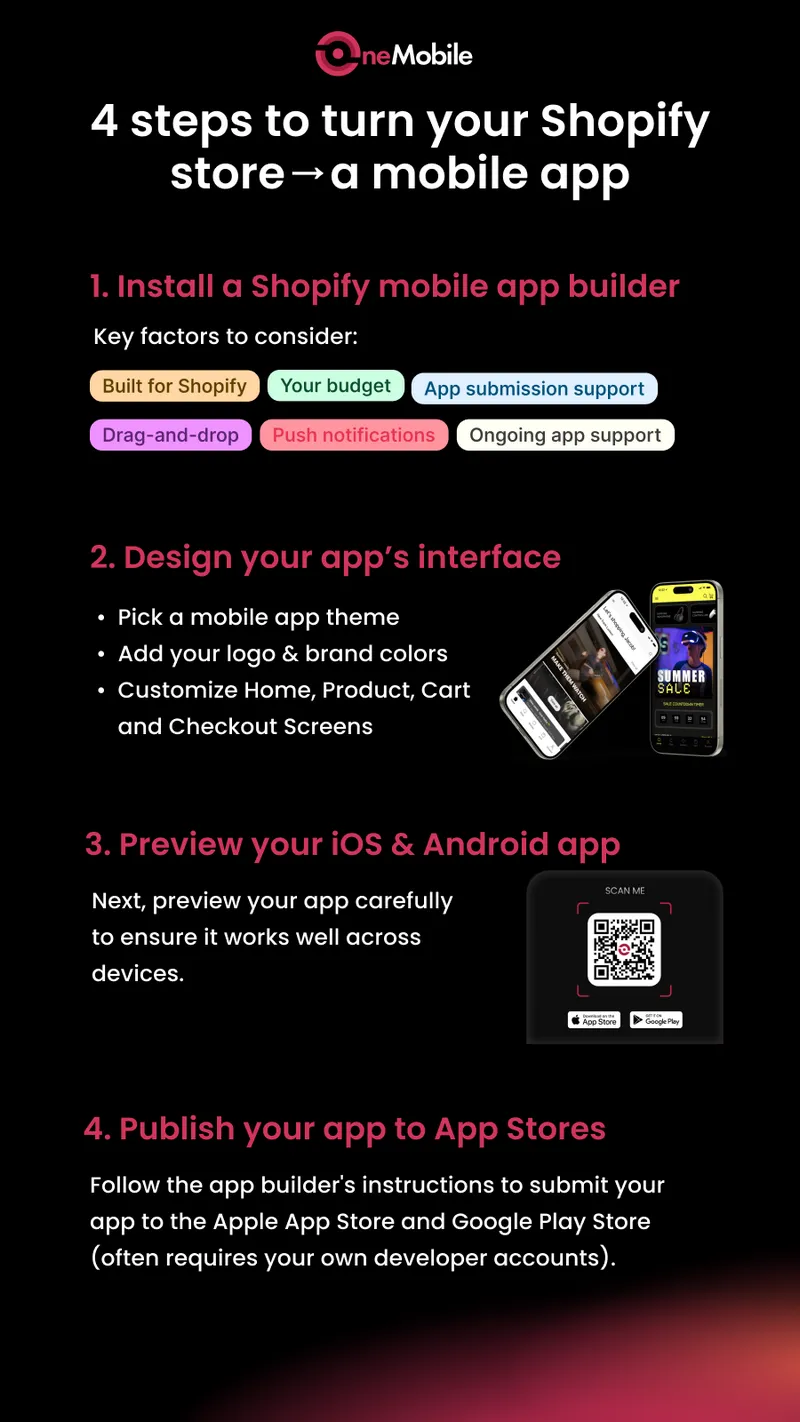
Step 1: Choose and install a Shopify mobile app builder
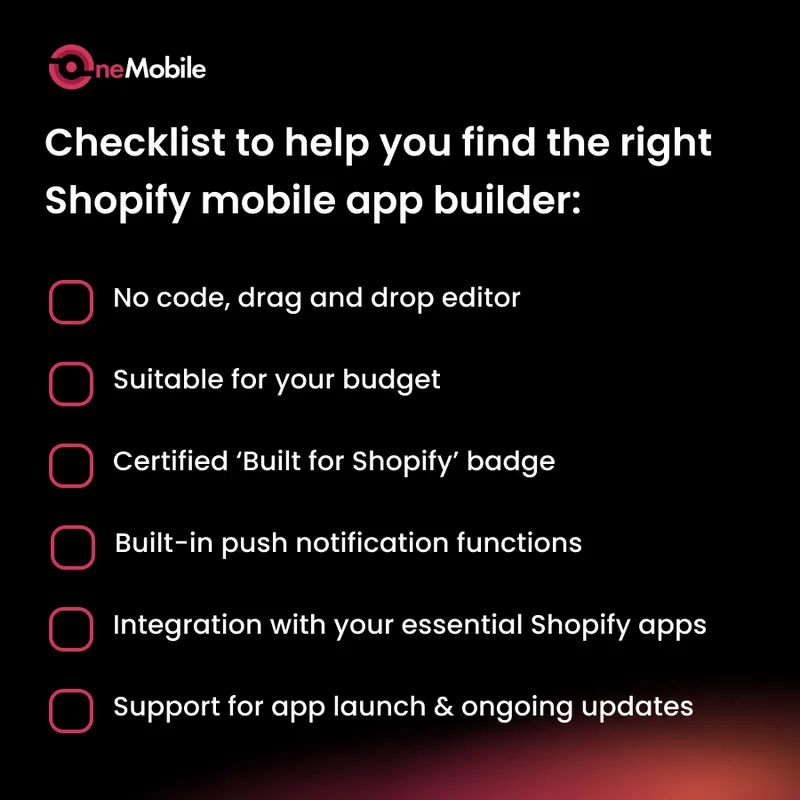
Start by choosing a reputable Shopify mobile app builder from the Shopify App Store. Here’s what you should look for:
- No-code, drag-and-drop editor: So you can easily design and customize your app without the coding part.
- Suitable for your budget: The builder should offer flexible plans that match your current needs, without forcing you into expensive upgrades just to access basic features.
- Certified ‘Built for Shopify’ badge: This badge means the app builder has been reviewed and approved by Shopify for quality, performance, and integration.
- Built-in push notifications: Your builder should support scheduled messages, automation (like abandoned cart reminders), segmentation, and deep linking.
- Integration with your essential Shopify apps: Your app should integrate smoothly with tools like loyalty, reviews, subscriptions, and upsells.
- Support for app launch & ongoing updates: App submission can be tricky, but a good builder will guide you through it and provide ongoing support after launch.
Popular Shopify mobile app builders include OneMobile, Tapcart, Vajro, Shopney, and Plobal Apps.
Once installed from the Shopify App Store, the builder will ask for permission to connect to your store. After that, it will automatically:
- Import your product catalog
- Sync collections, variants, pricing, and inventory
- Begin pre-configuring navigation and app settings
Most builders offer a guided onboarding flow, so no coding or technical setup is needed.
💡 Tip: You can use a free trial to explore the builder’s features before committing.
Step 2: Customize your app design
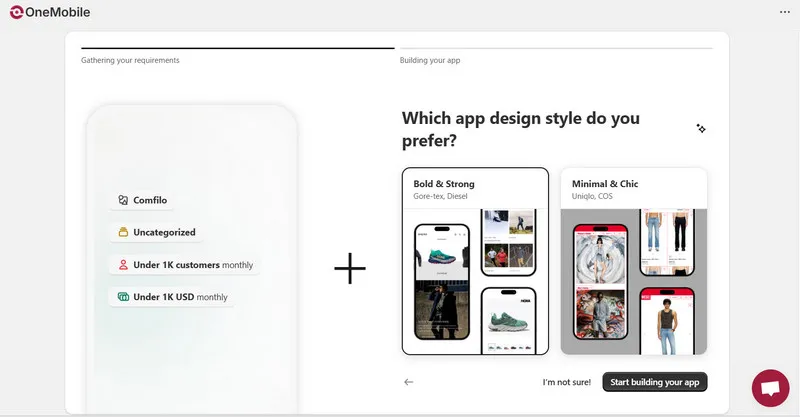
After installation, the next phase is customization. This is where your app begins to take shape. You can:
- Select a layout template suited to your brand. Most builders offer mobile-optimized templates tailored for different industries, such as fashion, food, beauty, or fitness – allowing you to start with a layout that feels familiar and effective.
- Customize colors, upload your logo, choose fonts, and organize your homepage with promotional banners, featured products, countdown timers, and more to match your store.
- Build out your pages, such as the home screen, product listing pages, and navigation menu.
- Add visual elements like banners, sliders, countdown timers, or featured collections
Best practice: Keep it clean and scannable. Since mobile users scroll fast, you should focus on key products and promotions up front.
You’ll also want to enable key features at this stage:
- Push notifications
- Loyalty or VIP programs
- Search & filters
- Live chat or chatbot integrations
- App-only discount banners or flash sales
Step 3: Preview your app on iOS and Android devices
Before launching, you should test the user experience on both iOS and Android. Most app builders make this easy with:
- QR code preview links
- In-app preview mode
- TestFlight (Apple) and APK download (Android)
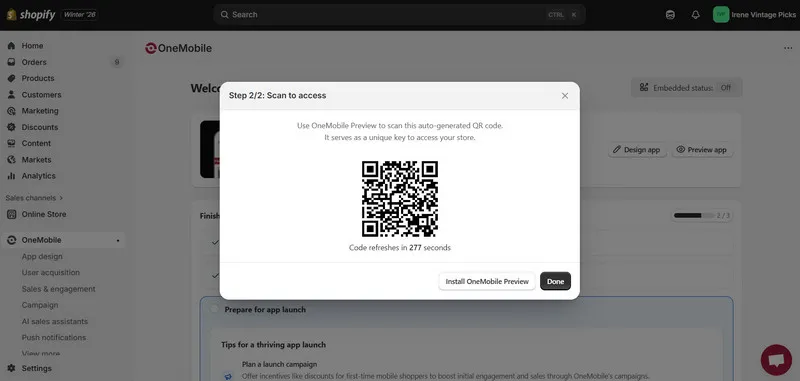
Pay attention to the following elements during your review:
- Navigation menus and product browsing
- Cart and checkout flow (including promo codes, taxes, shipping)
- Account login, sign-up, and order history
- Push notification delivery and display
- Load speed and responsiveness
During the review process, you might uncover common issues such as image sizing inconsistencies, button overlaps on small screens, or checkout bugs (noting that some builders use Shopify’s web checkout while others embed it directly).
Additionally, if your builder includes built-in analytics, it is essential to trigger a few test events, such as ‘add to cart’, to ensure they are being tracked correctly.
Step 4: Publish your app to the App Store and Google Play Store
Once you’re satisfied with your app design and performance, it’s time to go live. Your builder will guide you through the publishing process, and may even do most of it for you.
You have two ways to go about this:
Option 1 – Publish under your own developer accounts:
- Apple Developer Account ($99/year)
- Google Play Developer Account ($25 one-time)
Option 2 – Let the builder publish under their developer account:
- Faster and easier, especially for first-timers
- Some platforms later help you transfer the app to your own account
You’ll need to prepare:
- App icon and splash screen (builder often generates these)
- Screenshots for app store listings
- Description and keywords
- Privacy policy and terms of service
Once everything is ready, the approval process begins. For iOS, Apple’s App Store typically takes between 2 and 5 business days to review and approve an app. On the Android side, Google Play is usually faster, often approving submissions within 1 – 2 days, and sometimes even the same day.
Brands that have successfully converted their stores into apps
Many Shopify merchants have already experienced the benefits of going mobile, especially through no-code app builders like OneMobile. Here are three real-world success stories you simply can’t miss.
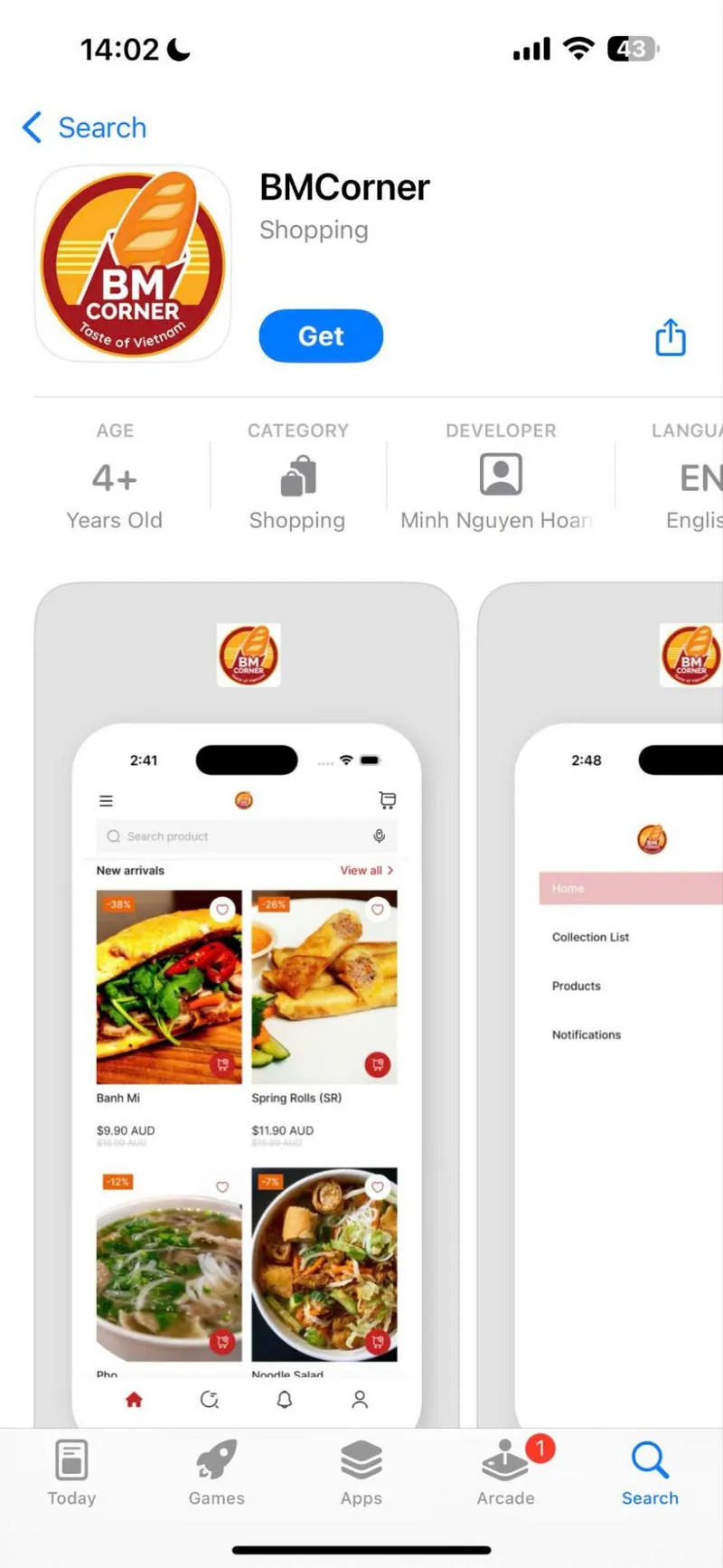
1. BM Corner
BMCorner is a home-based Vietnamese kitchen on Australia’s Gold Coast, founded by Anna Dao. As orders grew, she noticed mobile users wanted a faster, easier ordering experience.
But the challenge is that her website couldn’t deliver a smooth mobile experience and she lacked the time or budget for custom app development.
So she decided to use OneMobile to turn her Shopify store into a mobile app, which was the turning point that drove her business to new heights:
- Achieved a 30% customer retention rate.
- 200 app downloads in the first month, now over 1,300+ users.
- $5,000+ in mobile app sales in just 30 days.
2. Curly Girl Method Club
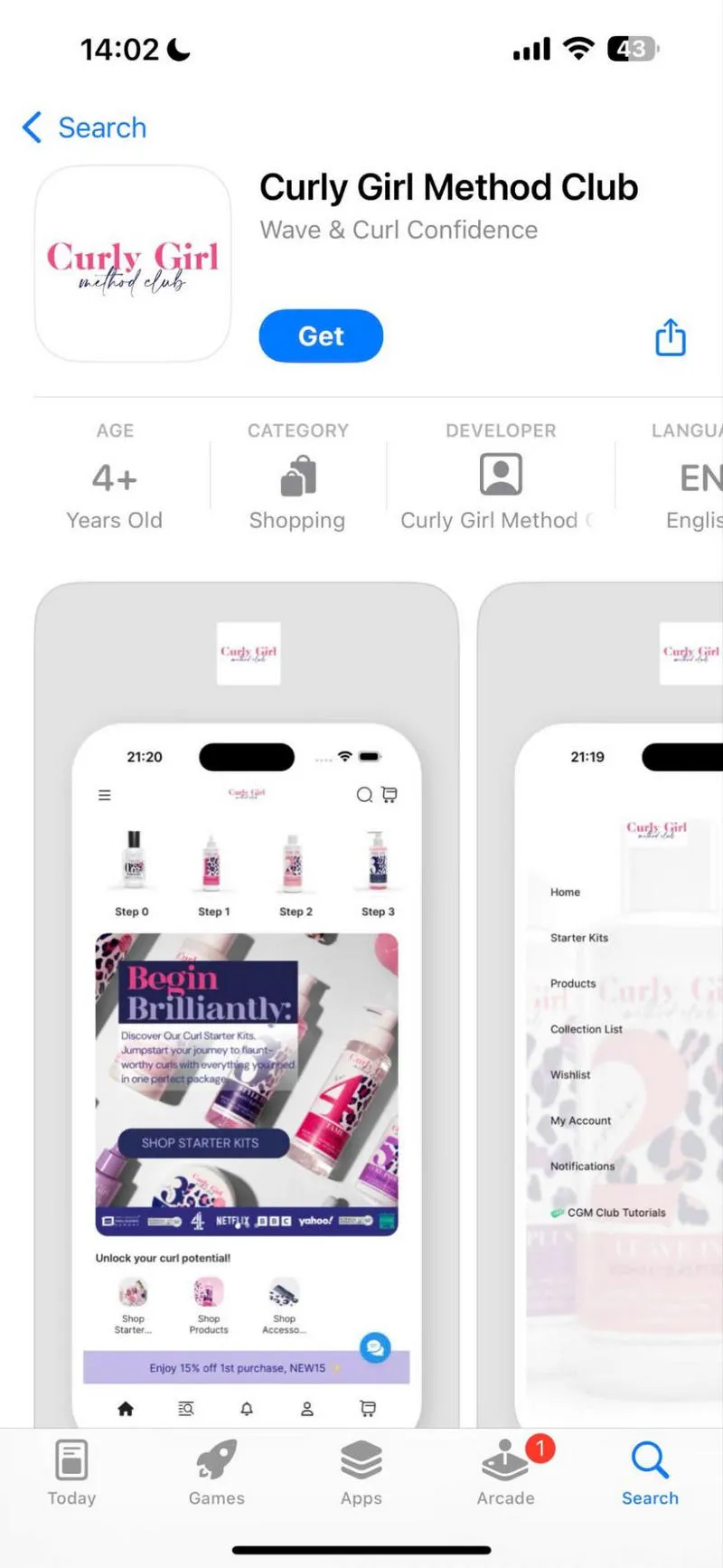
Curly Girl Method Club is a haircare brand for people with curly hair. Its founder, Heather, wanted to build stronger, more direct connections with her community. While email and social media helped, they lacked the personal touch she envisioned.
As more shoppers moved to mobile, her web store struggled to convert, and engagement felt increasingly distant. Then she discovered OneMobile and launched a fully branded app on our platform. The results are beyond her expectations:
- 40% of total sales now come from the app.
- AOV is higher on the app than on the website.
- Push notifications made engagement feel personal and immediate.
3. San Benedetto Collections
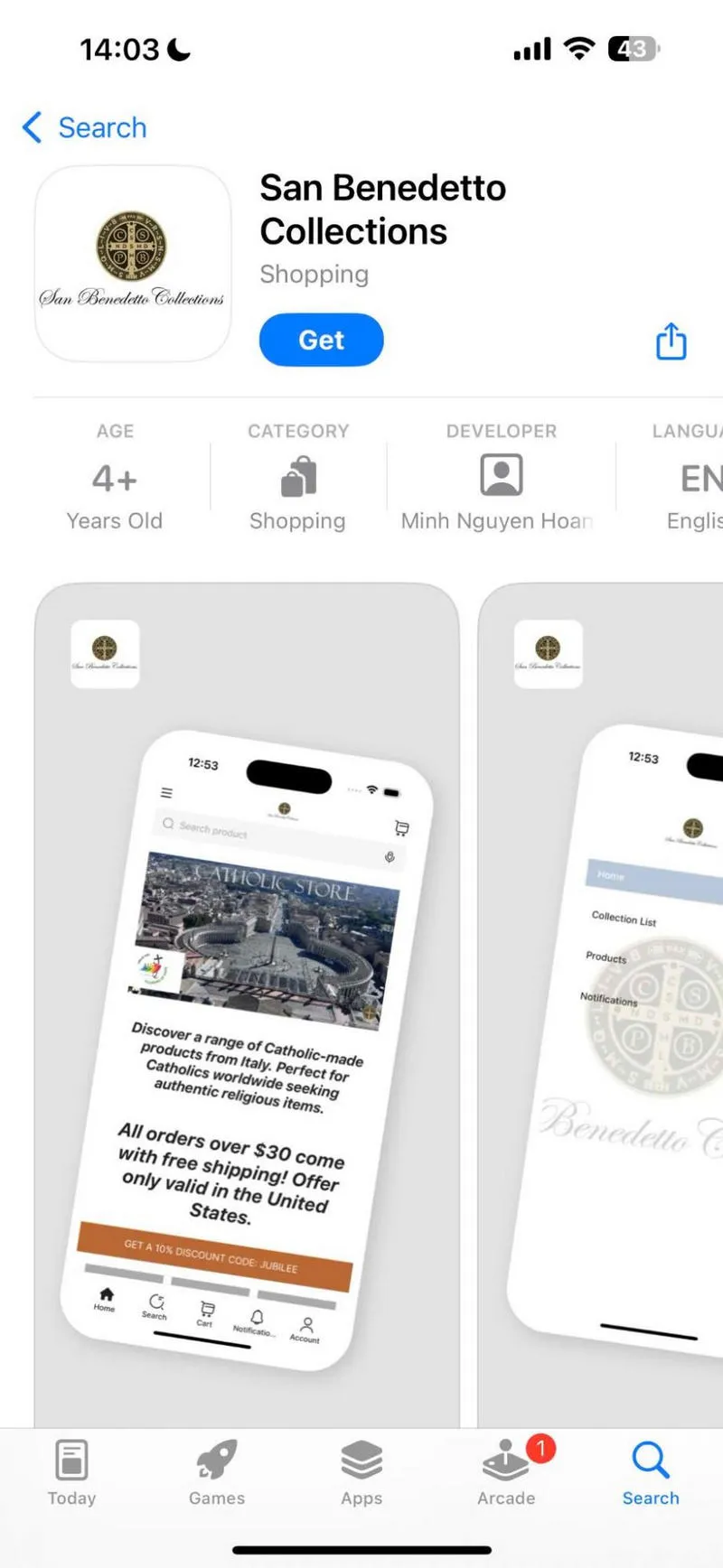
Another standout success story is about Luis and Camilia Gonzalez, who run San Benedetto Collections, a faith-based brand selling handcrafted Catholic items from Italy. With a growing global customer base, they needed a faster, more intuitive mobile experience.
In the early stages, their website wasn’t mobile-optimized, and managing products and promotions was time-consuming. After exploring various ways to provide a more convenient shopping experience, they decided to launch a OneMobile-powered app that simplified operations and elevated the shopping journey.
The results were really rewarding:
- 65% increase in app downloads and visits.
- Easier product updates and promo launches.
- More time to focus on curating meaningful, high-quality items.
- Responsive support gave them confidence to scale.
Frequently asked questions
1. How much does it cost to build and maintain a Shopify mobile app?
Shopify mobile app pricing can cost from $29 to $10,000 per month, depending on your app development solution.
2. Can I launch a mobile app if I’m on Shopify Basic?
Yes, you can. Most Shopify mobile app builders support the Shopify Basic plan.
3. How long does it take to launch a Shopify mobile app?
From 1 week to 6 months, depending on your app development approach:
- With mobile app builders: 1–4 weeks
- With custom mobile app development services: 3–6+ months

Thuan Do
SEO Specialist
“An SEO specialist with over 5 years of experience. With a strong background in digital marketing and a focus on mobile-first and SaaS products, Thuan has led SEO strategies that drive consistent traffic, boost visibility, and support scalable growth. His expertise spans keyword research, content optimization, technical audits, and performance tracking”
Table of Contents
Table of Contents
Read more articles

Web App vs Website: Similarities, Differences & Myths Debunked
By Alexandre Le
April 13, 2026
What is a PWA? A Complete Guide to Progressive Web Apps
By Alexandre Le
April 13, 2026