Preparing your mobile app for BFCM takes more than adding a sale banner. You need to make sure shoppers can find your deals, complete their purchases, and receive relevant updates throughout the sale. That matters because mobile devices are expected to account for 57.4% of US online holiday spending in 2026, up from 56.4% in 2025, according to Adobe’s 2026 Holiday Forecast.
Black Friday falls on November 27, 2026, and Cyber Monday on November 30. Drawing on our experience helping Shopify merchants run their apps through BFCM, this BFCM checklist works backward from those dates, covering what to prepare, when to do it, and what to prioritize if you’re short on time.
Your BFCM checklist at a glance
| Stage | Step | Priority |
| 5+ weeks before (by Oct 23) | 1. Decide whether to launch an app (if you don’t have one yet) | If it fits |
| 2. Grow your app audience with an app-only BFCM perk | Recommended | |
| 3. Prepare your loyalty program (if repeat buyers drive revenue) | If it fits | |
| 4. Localize your app (if you sell internationally) | If it fits | |
| 2–5 weeks before BFCM (Oct 24 to Nov 13) | 5. Set up your BFCM design and a dedicated BFCM screen | Must-do |
| 6. Add sales elements and urgency | Recommended | |
| 7. Merchandise your BFCM products | Recommended | |
| 8. Find and fix where shoppers get stuck | Recommended | |
| 9. Set up your checkout for BFCM | Must-do | |
| 10. Plan and segment your push notification calendar | Recommended | |
| Final checks: Nov 14–26 | 11. Test the full shopping journey | Must-do |
| During and after (from Nov 27) | 12. Monitor and respond during the sale | Must-do |
| 13. Review results and build the next purchase | Recommended |
Start with the must-do steps, then move on to the recommended ones. Steps marked “if it fits” only apply to some stores, and each one explains how to check. If your app is already live, most must-dos just mean confirming that your current setup still works. If your app is new, focus on launching, your BFCM screen, checkout, and testing first; the audience and messaging steps pay off more once you have users.
Only have a week or two left? Start here
You won’t have time for every step, so focus on these five, in this order. The first two come first because a broken discount or an unavailable product costs you sales even when everything else works.
| Order | What to do | Done when |
| 1 | Test checkout and discounts | You can complete a test order, and prices, fees, and discounts are all correct |
| 2 | Check your featured products | No banner or link sends shoppers to a product they can’t buy |
| 3 | Make your BFCM deals easy to find | Your home screen and banners open the right offers |
| 4 | Set up or check your abandoned cart push | It triggers correctly, opens the shopper’s cart, and doesn’t duplicate an automation you already run |
| 5 | Invite website shoppers to install your app | Your download banner or popup works and opens the right download page |
Start early: 5 or more weeks before BFCM (by October 23)
These are the steps you can’t rush. An app takes 5 to 7 business days to go live after you submit, and installs only add up as shoppers visit your site and place orders, so starting late leaves you with a much smaller audience on Black Friday.
1. If you don’t have an app yet, decide whether to launch one now
A mobile app is most useful when you already have customers worth bringing back. With push notifications and app-only offers, you can reach them again without paying for every visit or competing in a crowded inbox.
An app is likely worth it if:
- You have a growing base of returning customers, but email and paid ads are your only ways to reach them
- You sell products people buy again, or run regular drops, restocks, or promotions
- You’re spending more and more on ads to win back customers who have already bought from you
It’s probably not the priority yet if your store is new, most customers buy only once, or your traffic is still small. In that case, your website, email, and checkout will do more for this BFCM.
If you decide to go ahead, treat the app as a long-term channel rather than a quick fix for BFCM. Leave room for App Store and Google Play review, a possible rejection and resubmission, and time to build an initial install base. An app that goes live the week of Black Friday will have very few users to reach.
To launch in time, prioritize a builder that handles app store submission for you, since review and resubmission are what usually delay a first launch. Our guide on turning your Shopify store into a mobile app walks through each step.
With OneMobile, you get a working draft built from your Shopify catalog in around 30 minutes, and designing and previewing it is free until you submit. Our team then handles the submission, and your app goes live in 5 to 7 business days, so submitting by early November leaves about two weeks to gather installs before Black Friday.
You can publish under our developer account or your own Apple and Google accounts. If you’re not sure, start with ours; you can transfer to your own later.
2. Grow your app audience before the sale
App-only deals only reach shoppers who have your app, and your BFCM pushes only reach those who also have notifications turned on, so the weeks before the sale are your window to grow that audience.
Give shoppers a reason to install with an app-only BFCM perk: early access to the sale, an extra discount, or a limited bundle that isn’t available anywhere else. Early access is often the safest choice for your margins, for example: “App users shop our Black Friday prices 24 hours before everyone else.” If you offer an extra discount instead, set its combination rules in Shopify so it can’t stack with your sitewide offer unexpectedly.
Announce the perk a few weeks before the sale, then promote it wherever shoppers already meet your brand:
- A download bar or popup for shoppers browsing your website on their phone
- A download banner on your order confirmation page, which reaches shoppers right after they buy
- A QR code on packaging inserts or in your physical store, if you have one
In OneMobile, these tools are all under Marketing & Conversion > User acquisition.
Give shoppers a reason to allow notifications, too. The permission prompt comes from the phone itself, and on iOS it appears only once: a shopper who taps “Don’t Allow” has to go into their phone’s Settings to turn notifications back on. You can’t change that prompt, but you can tell shoppers what notifications will bring before they see it, such as early access to your Black Friday sale, in the download prompts that lead them to install.
3. Prepare your loyalty program, if repeat buyers matter to your store
During BFCM, shoppers compare deals across many brands, so even your regular customers may buy from whoever has the best discount that day. A loyalty program gives them a reason to choose you that doesn’t depend on price alone, and it gives you a way to stay in touch with the new customers BFCM brings in.
What to do depends on where you are:
- If you already run a loyalty program, make sure members can see and use their rewards inside your app before the sale starts.
- If you don’t have one yet, only set one up before BFCM if returning customers drive a meaningful share of your revenue, or you sell products people buy again (beauty, food, apparel basics). Otherwise, it can wait until after the sale.
A few ways to use your loyalty program during BFCM:
- Offer double points, or another multiplier that fits your margins, on BFCM purchases
- Give existing members early access to your deals before the public sale
- Add a daily check-in or a spin-to-win reward in the lead-up to the sale, so members open your app before it starts (only if you have time to test it before the sale)
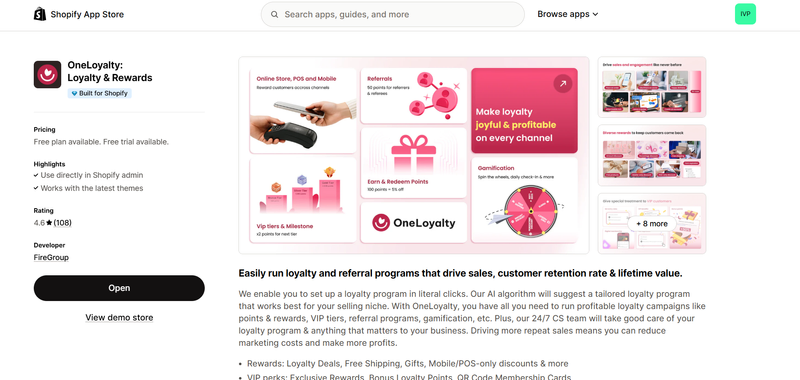
OneMobile apps can show members their points with the Loyalty block (available from the ScaleUp plan). If you need a loyalty app, OneLoyalty is built by the same team behind OneMobile and works across your Shopify store, Shopify POS, and your app.
4. Localize your app, if you sell internationally
Shoppers are more likely to buy when they can browse in their own language and pay in their own currency. The deciding factor is where your traffic and orders already come from, which you can see in your Shopify analytics.
If a meaningful share comes from outside your main market, localize before BFCM: those shoppers are already visiting, just in a language or currency that isn’t theirs. If almost all of it comes from one country and one language, localization won’t change much for this BFCM, and you can leave it for later.
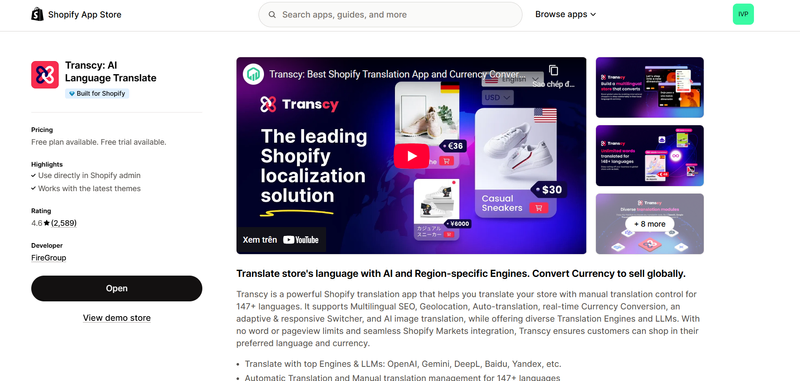
OneMobile apps support multiple currencies and languages. If you need more languages than your plan includes, we’d recommend connecting Transcy to translate your app for your international shoppers.
Get the app ready: 2–5 weeks before BFCM (October 24 to November 13)
This is where most of the visible BFCM work happens, and it ends with one deadline. Anything that needs a new app store release, such as changing your app icon on the App Store and Google Play (available on the Omni plan), should be submitted and approved by around November 13, which leaves time for one rejection and a resubmit. Screens, banners, and blocks you change in the editor update your live app without a release, so those can keep changing up to the sale.
Your BFCM screen and checkout settings come first. Sales elements, product layouts, fixing dead ends, and your push calendar improve results once those are in place. Test each piece as soon as you’ve set it up, so your final checks confirm what already works rather than catching problems for the first time.
5. Set up your BFCM design
When the sale starts, shoppers should be able to find your BFCM deals as soon as they open the app. If the app looks the same as it did last month, many won’t realize a sale is on.
The center of your BFCM design is a dedicated BFCM screen. Bring all your deals into one place, put your app-only perk at the top, and set the screen as your temporary home screen so shoppers who open the app see your offers first.
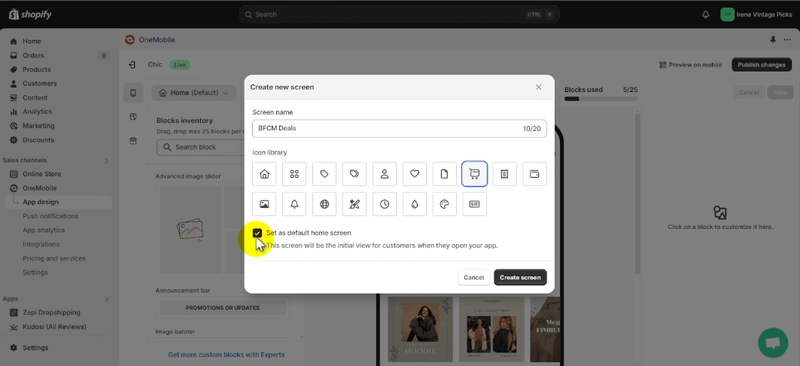
Before you build it, brief your creative team: app banners and push images use different sizes from your email and social assets, and they’re the ones that tend to get forgotten. As you build it, keep the visuals and offers consistent with your website and push messages, and make sure every advertised discount is set up in Shopify. Then plan when you’ll switch back to your regular design after the sale.
You don’t have to build all of this block by block. Where to start depends on where your app is, and you can edit everything afterward:
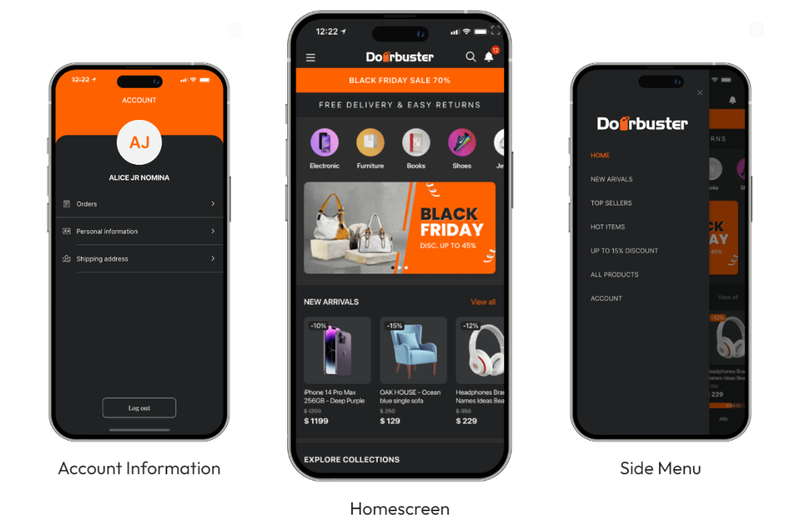
- If you’re building your app now, start from the Doorbuster theme. It’s built with bold, contrasting colors for big sales events, so your app is ready for BFCM from day one. You can try it for free.
- If your app is already live, or you want a different look from Doorbuster, use AI Campaign. Its templates come from what our team has seen work in sales campaigns across OneMobile stores, so you start from a proven setup instead of designing one yourself. Pick a BFCM template in the Campaign tab, choose your products, and add your message. The sale is then applied across your app in about a minute. It’s available from the ScaleUp plan.
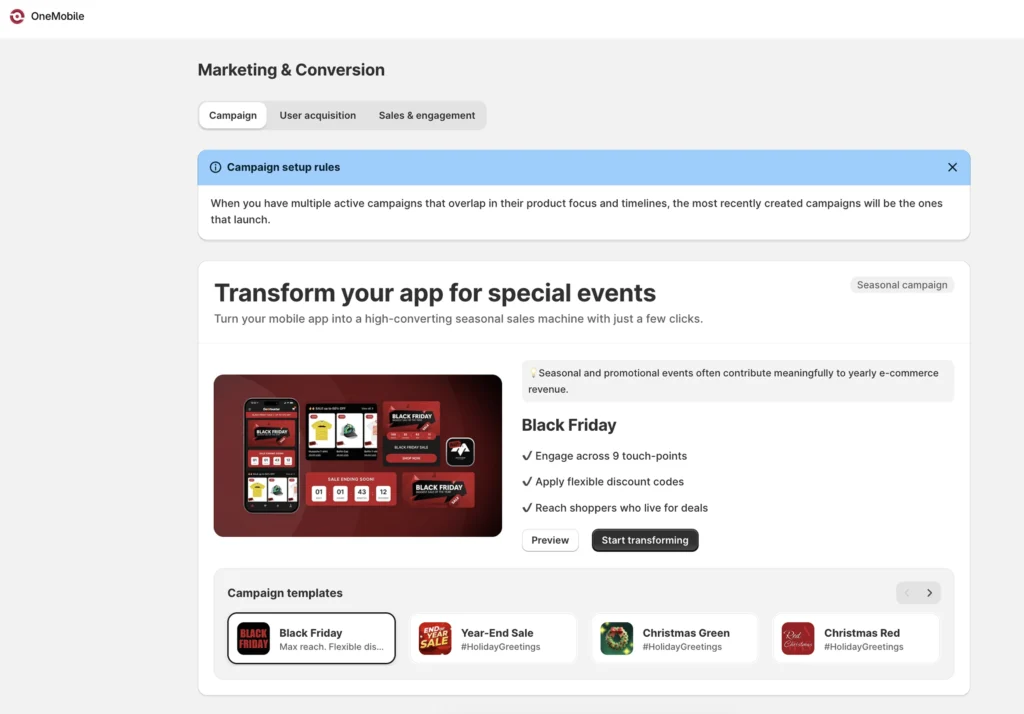
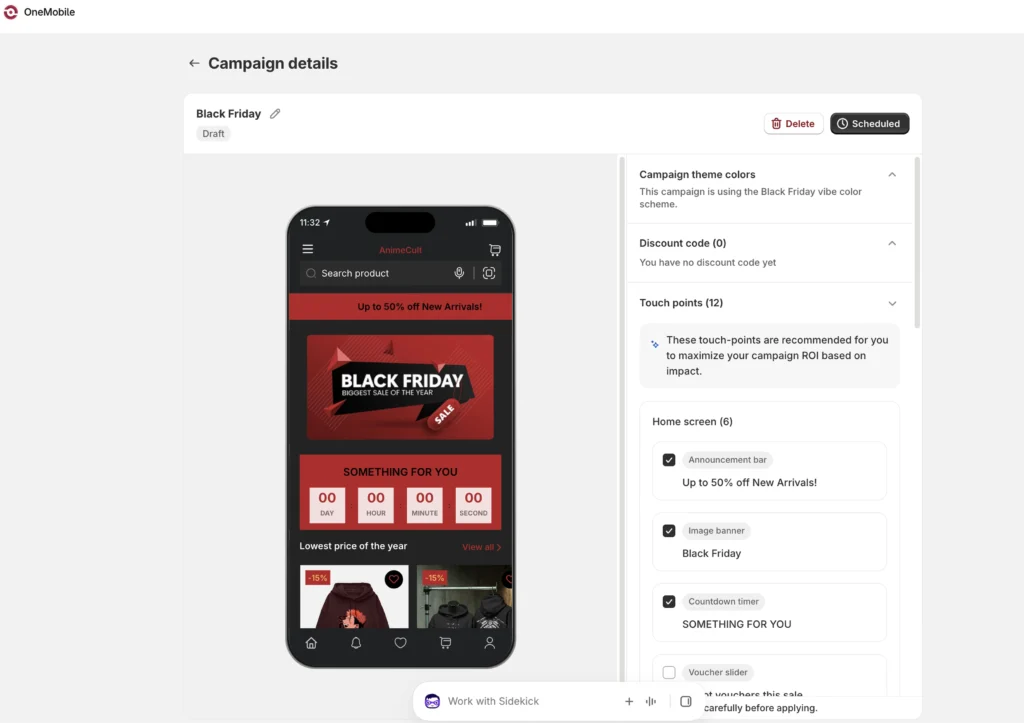
6. Add sales elements and urgency
Your BFCM screen covers shoppers who open the app. But many shoppers arrive somewhere else first, from a push notification or a link, so the sale should be visible on those screens too.
If you’re using AI Campaign, the elements below are already included, so you can skip ahead and only come back here to adjust them. If you’re building your design yourself, each one is available as a block in the editor.
- Image banner: feature your main deal. It’s the simplest way to keep the sale visible. Link it to your BFCM screen or sale collection.
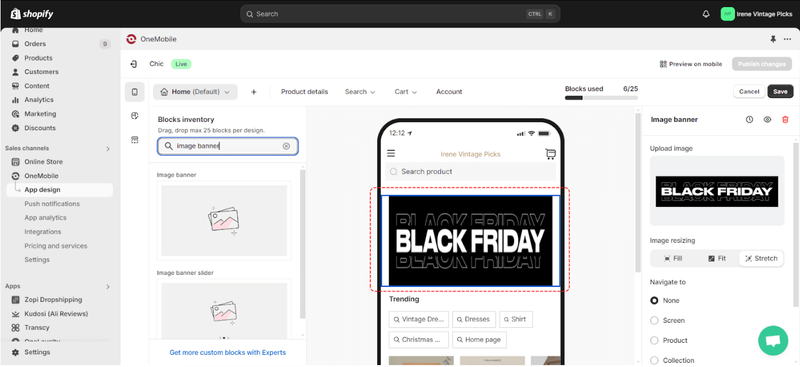
- Announcement bar: keep your headline offer in view. Use it for a sitewide discount or a free shipping threshold, so shoppers see it as they move between screens. Available from the ScaleUp plan.
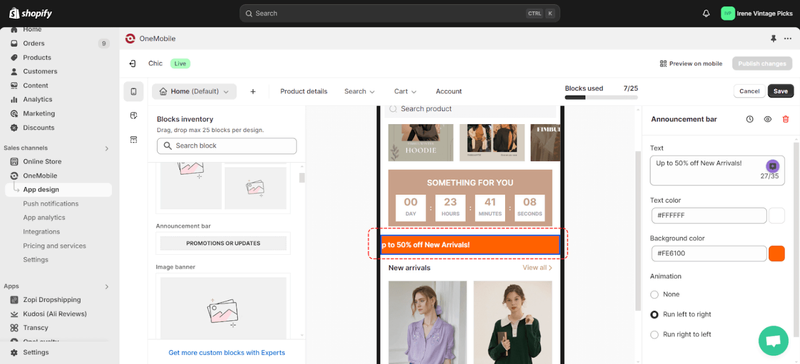
- Product badges: highlight deals at the product level. Label items as on sale, best sellers, or limited stock while shoppers browse.
- Countdown timer: add urgency to your main deals. In the editor, search for the Event Countdown Timer block, drag it onto your BFCM screen and product screens, and set when it starts and how long it runs. We’d recommend placing it near the top of the screen, where shoppers see it first. Available from the ScaleUp plan.
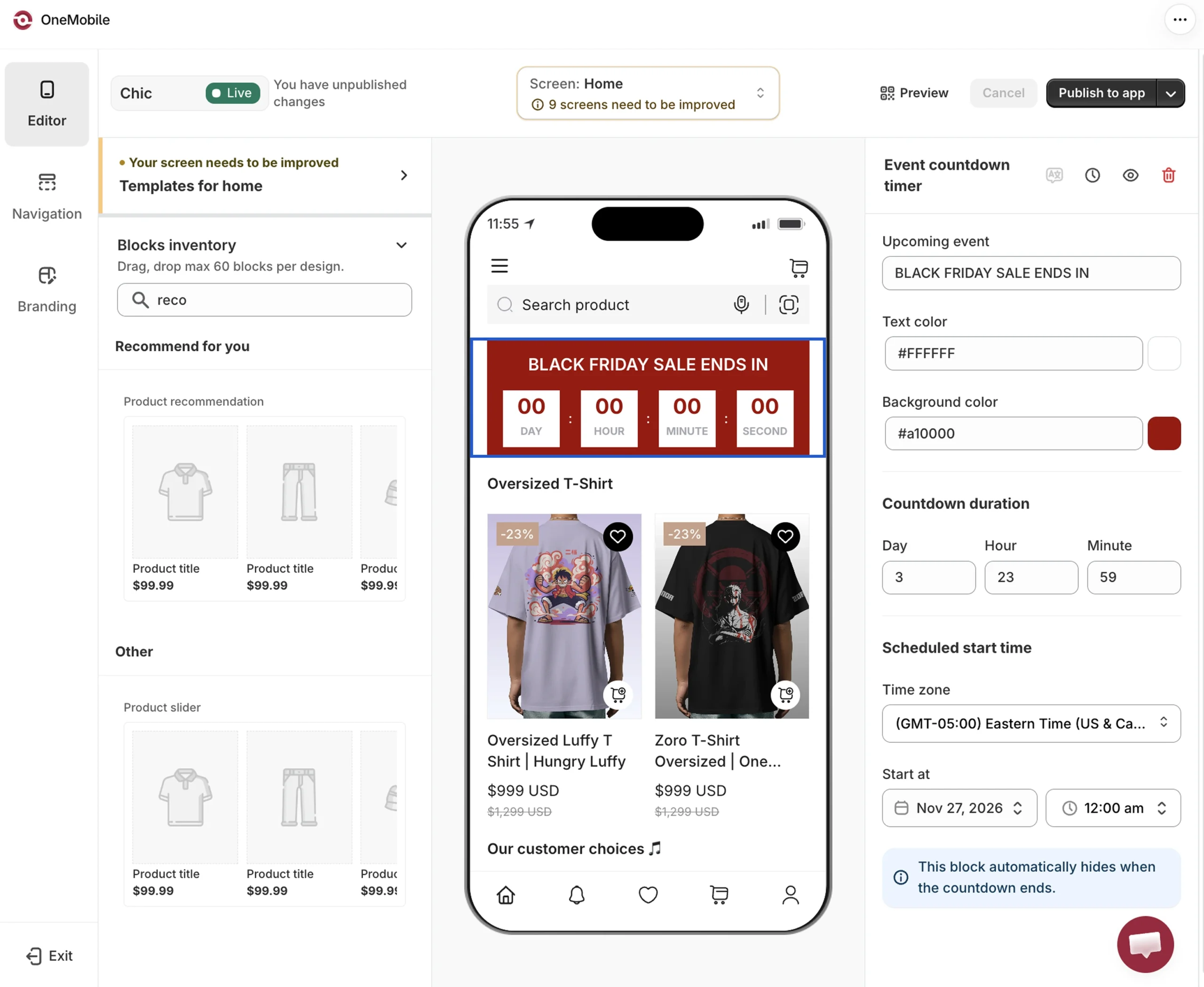
Only count down to a real deadline. A timer that resets, or an offer that “ends” and comes back, teaches shoppers to ignore you. In the UK, the Competition and Markets Authority also warns that false time limits can break consumer protection law. Use one or two timers tied to your main deals, not one on every screen.
You don’t need all four. A banner and an announcement bar cover most stores; add badges or a countdown if they fit your offer.
7. Merchandise your BFCM products
Featuring every product in the same layout from top to toe can bore your shoppers, and your best deals get lost in the scroll. We suggest mixing layouts instead:
- A slider for your doorbusters (your biggest, most limited deals)
- A grid for the full sale catalog
- Collection cards that point shoppers to your sale collections
In the editor, search for “product” or “collection” to see all the ready-made layouts in the block library.
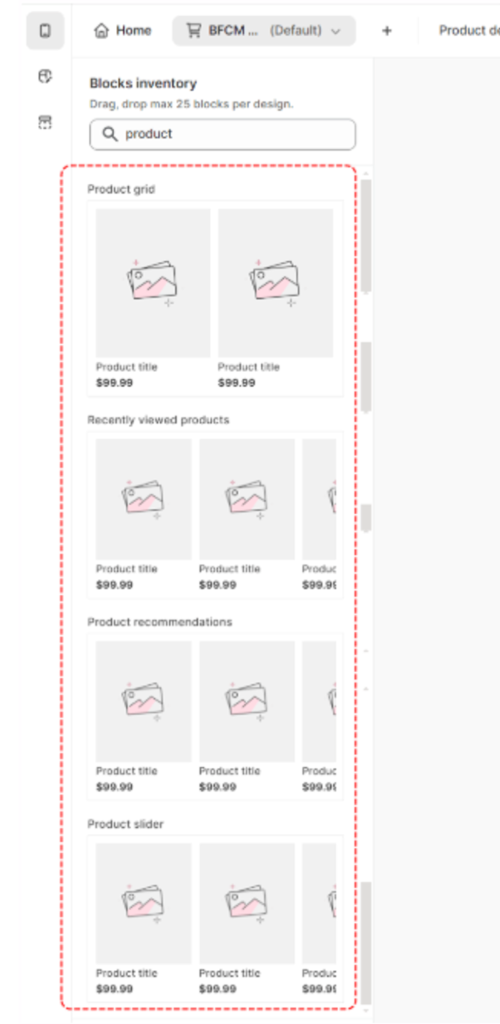
Then make each shopper’s experience feel more relevant:
- Product recommendations surface items each shopper is more likely to want, based on what they’ve browsed and bought.
- Recently viewed products help shoppers pick up where they left off.
- Upsells and cross-sells suggest complementary items on product and cart screens, right before checkout.
Before the sale, also confirm that out-of-stock hiding is turned on, so doorbusters that sell out drop out of browsing automatically. You’ll double-check this during your final testing.
8. Find and fix where shoppers get stuck
One mistake we often see is merchants polishing their home and product screens while leaving the rest of the app untouched. A shopper gets stuck when a screen gives them no clear next step, and that usually happens on the screens nobody checked. Find where that happens before you fix anything:
- Walk through your main journeys yourself. Search for a product, misspell a search on purpose, browse a collection, then add and remove an item from your cart. Note every screen with nothing useful to tap, and include the ones that are easy to forget: search results and no-results screens, the empty cart, the account screen, and any custom screens you’ve built.
- Check your data, if you have it. Searches that return no results and screens where shoppers frequently drop off are the clearest signs of a dead end.
Two screens are common culprits:
- Search with no results. Shoppers who search usually have a specific product in mind, so a typo or an unavailable product can leave them with nowhere to go. Suggested search phrases and recently viewed products give them something relevant to tap instead. During BFCM, point those suggestions to your sale, for example “Black Friday deals” or your top doorbuster categories.
- Empty cart. A shopper who empties their cart is still in your app. A product slider or your BFCM banner on this screen gives them something to browse instead of a blank page.
OneMobile’s screen templates can help you set up search and cart screens for these goals.
9. Set up your checkout for BFCM
A shopper who reaches checkout has usually decided to buy, so anything that slows them down here costs you an order you’d almost won. According to Baymard Institute’s cart abandonment research, 17% of US online shoppers have abandoned an order because the checkout process was too long or complicated.
If your app uses Shopify’s checkout, you can’t redesign the checkout itself, but the settings that matter most are in your hands. Configure them now, so you have time to test them before the sale:
- Turn on express payments. Enable the methods available to your store, such as Shop Pay, Apple Pay, Google Pay, or PayPal, so eligible shoppers can check out with fewer details to enter. Which methods you can offer depends on your payment provider and the markets you sell in.
- Don’t force account creation. Let shoppers check out as guests. Being asked to create an account is another common reason shoppers abandon an order.
- Show costs and delivery times early. Unexpected extra costs such as shipping, taxes, and fees are the most common reason shoppers abandon at checkout. Show shipping fees, estimated delivery dates, and your return policy before shoppers reach the final step.
OneMobile apps run on Shopify’s native checkout, so any change you make to your payment and shipping settings in Shopify carries over to your app automatically.
10. Plan and segment your push notification calendar
Check how many shoppers you can reach. Look at how many devices actually receive your notifications; in OneMobile, you’ll find this in your push notification analytics. If that number is small compared to your overall audience, focus on checkout and testing first, and keep your push plan simple.
Start with one automation. If you don’t have any push automations running yet, set up one before the sale rather than trying to build several at once. Abandoned cart is a practical first choice: it targets carts shoppers left just before paying, which are the orders you were closest to winning. Once it’s running, track its deliveries, opens, and conversions to see how it’s performing.
Map out your calendar. A typical BFCM plan covers:
- One week before BFCM
- Three days before
- The day before Black Friday
- Key moments during the sale
Point each push to the screen that’s most useful for that moment; a launch push, for example, should open your sale collection rather than the home screen. If your campaign tool already schedules launch and reminder pushes, build your calendar around those to avoid sending the same message twice. For a full day-by-day plan, see our BFCM push notification calendar.
Sync with your email calendar. If you also send BFCM emails, plan push timing around them so the same shopper doesn’t get the same offer through both channels at once. If you use Klaviyo, OneMobile integrates with it, so your app can run alongside the email flows you already have.
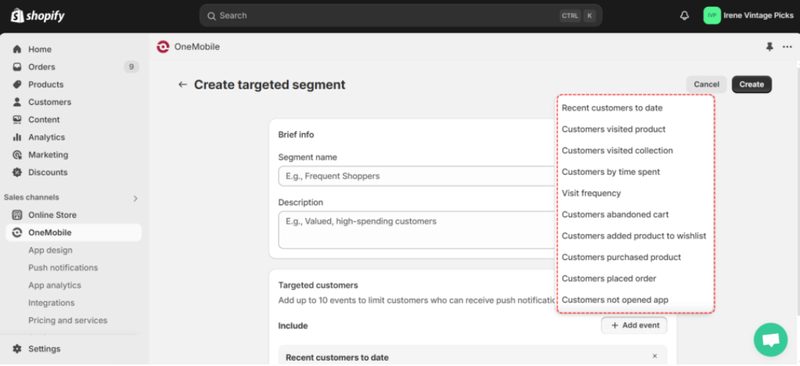
Match the message to the shopper. During BFCM, shoppers get alerts from many brands at once. A message that has nothing to do with them gets ignored, and enough of them can lead shoppers to turn notifications off. Group your app users by what they’ve done, and give each group its own reason to tap:
- Shoppers who haven’t opened your app in 15 days or more: remind them the sale is on and lead with your strongest deal
- Shoppers who viewed products but didn’t buy: bring back the items they looked at, now at sale prices
- Shoppers with items in their wishlist: let them know when a saved item is discounted
These are common starting points, and you can build your own segments around your customer data.
Use templates to write faster. Most push tools include ready-made templates, so you don’t have to write every message from scratch. OneMobile has 150+, including ones built for BFCM.
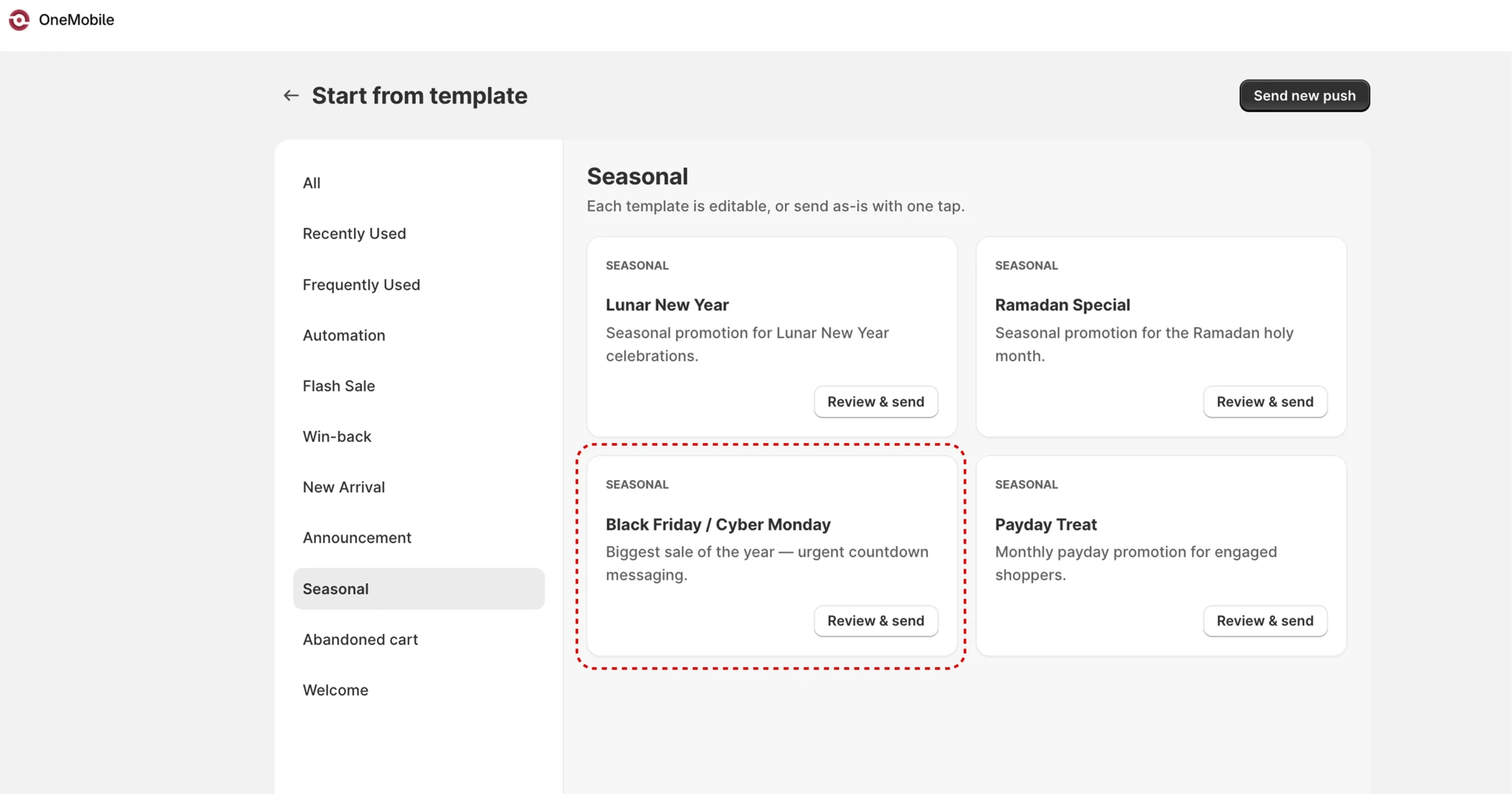
A few messages you can adapt:
- Early access, to app users: “You’re in early. Our Black Friday prices are live for app users only until tomorrow morning.”
- Abandoned cart: “Still thinking it over? The items in your cart are part of our Black Friday sale until Monday.”
- Last day, on Cyber Monday: “Our BFCM sale ends tonight at midnight. Here’s what’s still in stock.”
Adjust the offer and deadline in each to match your actual sale.
Reach shoppers who turned notifications off. A message shown inside the app reaches shoppers who don’t allow push the next time they open it. In OneMobile, you can send an in-app message alongside each push.
Final checks: November 14–26
By now, everything you plan to run should be in place, any app store changes should be approved, and you should have tested each piece as you set it up. These two weeks are for a final run-through of the whole journey, not for starting big changes.
11. Test the full shopping journey
Walk through your app the way a shopper would, and check everything you’ve set up so far. A broken link or a wrong date on a banner is easy to miss in the editor, and costly to discover during the sale.
In the app
- Use real devices. See your app on both iOS and Android, on different phone models and screen sizes, and on a tablet if your shoppers use one, since what looks right on one device can break on another. Test signed out as well as signed in, and on an older phone with a slow connection. The OneMobile Merchant Center (OMC) app lets you preview your iOS and Android app exactly as shoppers will see it.
- Check every link and date. Banners and push notifications should open the right products or collections, and countdown timers should show the right times. Send a test push to yourself to confirm its link works and its image displays well on both iOS and Android. Then tap the links in your BFCM emails, SMS, and ads, including from Gmail and Instagram, where links often open in a browser instead of your app.
- Check your featured products. Make sure every product on your BFCM screen and banners is in stock, and that out-of-stock hiding is on, so sold-out doorbusters disappear from browsing during the sale.
At checkout
- Test your discounts. Apply each BFCM code or automatic discount at checkout to confirm it works on the right products. Then try combining them, for example an app-only code with your sitewide offer or free shipping, to check that the combination rules you set in Shopify behave as intended. If you run an app-only offer, also try it on your website to make sure it doesn’t work there.
- Place a test order. Go all the way to the order confirmation page to confirm your express payments, guest checkout, and shipping information work as expected.
If something goes wrong
Keep a replacement discount code ready, draft a short message for customers in case something breaks, and know how to reach your app builder’s support team quickly. Brief your own support team too, since app shoppers ask app-specific questions, such as why an app-only code doesn’t work on the website.
Will your app handle BFCM traffic? Your app’s checkout runs on Shopify, the same checkout that handles your website’s orders during BFCM, so the step where shoppers pay doesn’t depend on a separate system. For the rest of the app, the run-through above is your best check. If anything loads slowly or looks off before or during the sale, our live support team is one click away in OneMobile.
During and after BFCM (from November 27)
Daily monitoring is what lets you fix problems while the sale is still running. The post-sale review then sets up your next campaign.
12. Monitor and respond during the sale
Once the sale is live, check your numbers every day rather than waiting until it’s over. BFCM moves fast, and a problem you spot on Friday can still be fixed before Cyber Monday. Name one person who owns the app over the weekend, so someone is always watching the numbers and new app store reviews.
In OneMobile, your campaign report shows how the sale is performing, and the analytics dashboard brings sales, engagement, and acquisition into one view. Both are available on desktop and in the OMC app, where you can also follow orders and send a push from your phone, so you don’t need to stay at your desk all weekend.
When a number moves, check the likely causes before you change your campaign:
| If you see | Check first | Then |
| App conversion rate drops | Key links, discounts, stock on featured products, and checkout | Fix what’s broken before changing offers or messages |
| A push or in-app message underperforms | The segment, the send time, and how relevant the message is | Adjust the segment or message before your next send |
| A discount applies where it shouldn’t | Its product eligibility and combination rules in Shopify | Correct the rules quickly, since errors cost margin fast at BFCM volume |
| A featured product sells out | Your BFCM screen, banners, and sliders | Replace it with a product shoppers can still buy |
Keep in mind that a change in app conversion isn’t always caused by the app. Compare it with your usual baseline and with what’s happening on your other channels before drawing conclusions.
13. Review results and build the next purchase
When the sale ends, you have two jobs: understanding what worked, and turning first-time BFCM buyers and new app users into returning customers.
Review performance. Start with these three:
- The app’s share of total store revenue. Compare it with a normal week, using the same attribution method both times. A higher share shows more sales went through the app, but revenue attributed to the app isn’t the same as extra revenue: some of those shoppers would have bought on your website anyway.
- New installs and new active users. These show how much your app audience grew. Users who return to the app or opt in to push give you another way to reach them in future campaigns.
- Results by offer, message, and segment. Record which deals, messages, and segments converted best. Christmas and year-end sales follow within weeks, so these results are a useful starting point for the next campaign. If you ran an app-only offer, count its redemptions by channel too; any website redemptions show where the offer leaked.
OneMobile’s campaign report shows your app’s results before, during, and after the sale. To work out the app’s share of total store revenue, compare those figures with your total sales in Shopify analytics for the same period.
Build the next purchase. Track your second-order rate: the share of first-time BFCM buyers who order again within 30 to 60 days. Unlike the numbers above, it keeps changing after the sale, and your follow-up shapes it. To give first-time buyers a reason to come back, send:
- A thank-you message after their order
- Recommendations that complement what they bought
- A reason to return before the holiday rush, such as loyalty points or early access to your next sale
In OneMobile, you can send these as automated push notifications, using a pre-built segment or one you define yourself.
Once those first orders are delivered, it’s also a good time to ask for app store reviews. Apple limits how often the rating prompt can appear for each shopper, so a delivered order, when shoppers are most likely to be happy, is a better moment than the middle of the sale. OneMobile includes a native app review popup you can use for this.
Shoppers who installed during BFCM but haven’t bought yet need a different first message. A welcome that points them to a gift guide, holiday shipping cut-offs, or back-in-stock alerts for items they missed gives them a reason to keep the app, without leaning on another discount.
The bottom line
Every step in this BFCM checklist comes back to three things: a sale shoppers can find, a checkout that works, and messages that reach the right people. Once the sale ends, your app gives you a direct way to turn first-time buyers into repeat customers.
Now that your app is ready, explore these BFCM promotion ideas to plan the offers and campaigns you’ll run across the sale. Good luck this BFCM!

OneMobile Team
Shopify Mobile App Builder
“OneMobile is the best Shopify Mobile App Builder that empowers merchants to effortlessly design, build, and launch fully-branded iOS and Android apps—without writing a single line of code. Transform your mobile presence into a high-converting sales channel with ease.”
Table of Contents
Table of Contents
Read more articles
![26 Best Shopify Apps for Black Friday Cyber Monday [Hot Deals Included]](https://onemobile.ai/wp-content/uploads/2024/11/best-shopify-apps-for-bfcm-628x328.webp)
26 Best Shopify Apps for Black Friday Cyber Monday [Hot Deals Included]
By Alexandre Le
October 28, 2026
20 Timeless BFCM Promotion Ideas That Are Proven Working
By Alexandre Le
October 1, 2026